Flutter Riverpod Tutorial Part 2: Asynchronous Providers (FutureProvider and StreamProvider)

FutureProvider
FutureProviderallows us to work with Futures in our Flutter ApplicationIt automatically handles the lifecycle of asynchronous operation.
So it provides us with a way to react to the different states of the future: loading, error and data.
Step 1: Add http to our pubspec.yaml
We are going to look at an actual networking example by showing either a single user or list of users from JsonPlaceHolder Users API. So let's add http into our pubspec.yaml
flutter pub add http
Step 2: Create a FutureProvider for Fetching Data
First, we need to set up the FutureProvider. We will create a function that fetches data from the JSON Placeholder Users API and returns a list of users:
import 'package:flutter_riverpod/flutter_riverpod.dart';
import 'package:http/http.dart' as http;
import 'dart:convert'; // Required for jsonDecode

final usersProvider = FutureProvider<List<dynamic>>((ref) async {
  final url = Uri.parse('https://jsonplaceholder.typicode.com/users');
  final response = await http.get(url);

  if (response.statusCode == 200) {
    return jsonDecode(response.body);
  } else {
    throw Exception('Failed to load users');
  }
});
Step 3: Building the UI to Display Data
Now, let's create the UI part where we use usersProvider to display the list of users or handle loading and error states:
class UsersScreen extends ConsumerWidget {
  const UsersScreen({super.key});

  @override
  Widget build(BuildContext context, WidgetRef ref) {
    final usersAsyncValue = ref.watch(usersProvider);
    return Scaffold(
      appBar: AppBar(
        title: const Text('Users'),
      ),
      body: usersAsyncValue.when(
        loading: () => const Center(child: CircularProgressIndicator()),
        error: (error, stackTrace) => Center(child: Text('Error: $error')),
        data: (users) => ListView.builder(
          itemCount: users.length,
          itemBuilder: (context, index) {
            return ListTile(
              title: Text(users[index]['name']),
              subtitle: Text(users[index]['email']),
            );
          },
        )
      ),
    );
  }
If we look closely in the above example:
usersAsyncValue.when() handles the three states:
loading: Displays a circular progress indicator.error: Shows an error message.data: Builds a list of users using aListView.builder.
Step 4: Run Our App
This is our current output:
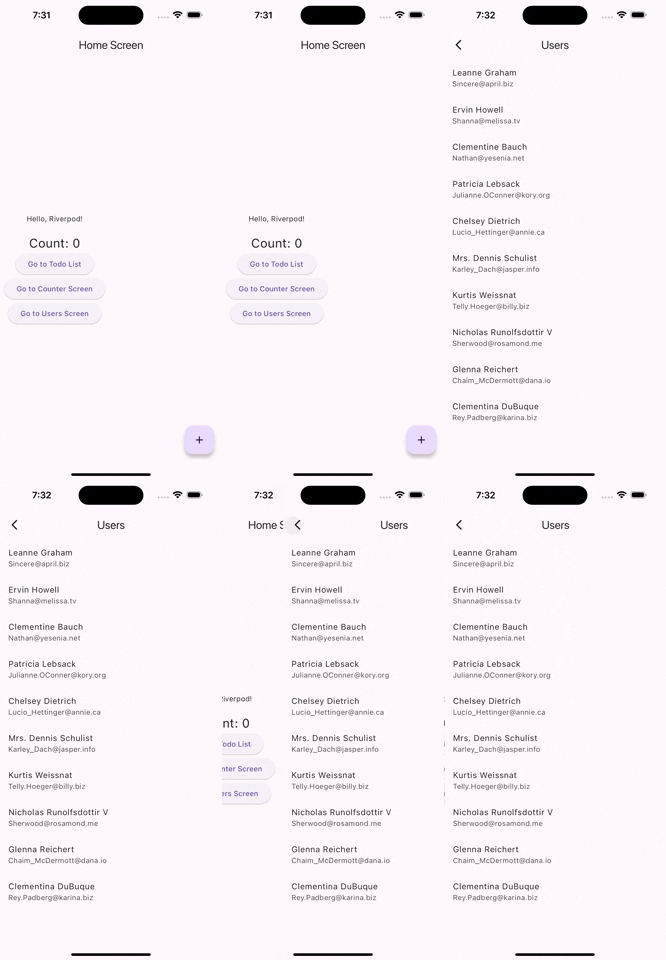
As always you can find the source code here: https://github.com/khkred/flutter_stack/tree/future_provider
StreamProvider
Step 1: Create a StreamProvider
First, define a StreamProvider that sets up a stream. We'll use Dart's Stream.periodic to create a simple stream that emits an incrementing integer every second:
final counterStreamProvider = StreamProvider<int>((ref) {
  return Stream.periodic(const Duration(seconds: 1), (count) =>  count +1);
});
This provider creates a stream that emits an incrementing count every second, starting from 1.
Step 2: Building the UI to Display our Stream Data
We will use a ConsumerWidget to consume the counterStreamProvider and update the UI every time a new value is emitted by the stream:
class CounterStreamScreen extends ConsumerWidget {
  const CounterStreamScreen({super.key});

  @override
  Widget build(BuildContext context, WidgetRef ref) {
    final counterAsyncValue = ref.watch(counterStreamProvider);
    return Scaffold(
      appBar: AppBar(
        title: const Text('Counter Stream'),
      ),
      body: Center(
        child: counterAsyncValue.when(
          data: (count) => Text('Current Count: $count', style: const TextStyle(fontSize: 24)),
          loading: () => const CircularProgressIndicator(),
          error: (error, stackTrace) => Text('Error: $error'),
        ),
      ),
    );
  }
}
In the above example:
counterAsyncValue.when()handles the different states:loading: Shows a circular progress indicator before the first value is emitted.error: Displays an error message if there's an issue with the stream.data: Updates the displayed count each time a new value is emitted from the stream.
Step 3: Run our App
Here's our Counter Stream Screen:
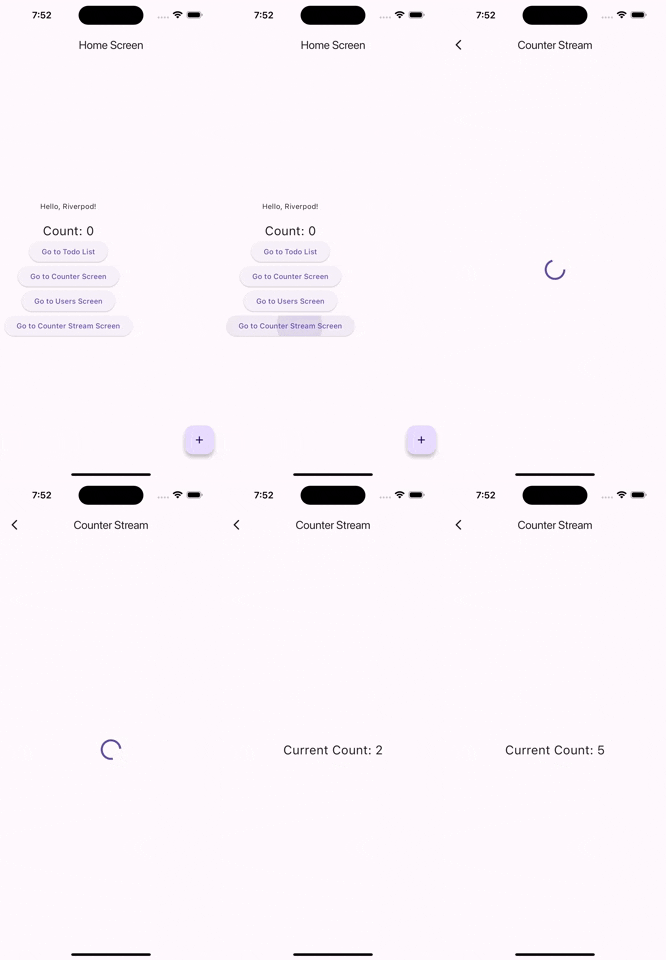
And as always you can find the source code here: https://github.com/khkred/flutter_stack/tree/stream_provider
If you like to learn more about Flutter. Keep following my posts.
Comments
Join the discussionNo comments yet. Be the first to comment.
Flutter Riverpod Tutorial
In this series, I'll cover every concept of Riverpod in a comprehensive manner, so that any user can understand total ins and outs of any Riverpod concept.